Mistral
Mistral is currently the AI solution selected by Nikhef. Below you will find instructions on how to access and use Mistral AI as a Nikhef employee. If you have any questions or comments, please contact the helpdesk (helpdesk@nikhef.nl).
Am I eligible for a Mistral account through Nikhef?
- Employees at the technical and/or supporting departments of Nikhef with a contract for an undetermined time period at NWO-I;
- Employees at the technical and/or supporting departments of Nikhef with a contract for a certain time period at NWO-I that has a duration of no less than at least one year;
- Employees at Nikhef with a managerial position;
- Scientific staff of Nikhef with a permanent contract at NWO-I or one of the Nikhef partner universities;
- Scientific staff of Nikhef with a tenure track contract with NWO-I or one of the Nikhef partner universities;
- OIOs or postdocs within the Nikhef partnership (with a contract with NWO-I or one of the partner universities);
How do I get access?
Send an email to the helpdesk requesting access to Mistral. The helpdesk will process your request, after which you will receive an email from Mistral to complete the registration process. Follow the steps below.
❗ Before using Mistral, please make sure you have read the Generative AI Awareness slides below.
Generative AI awareness slides
Generative AI awareness slides
| Instructions | Images |
|---|---|
| Step 1: You will receive an email from Mistral once your request has been processed by the helpdesk. Check which email address the invitation was sent to, as you will need it in the next step. This should be your "Nikhef login name@nikhef.nl" To continue, click the button labelled 'Start Chatting' to continue. | 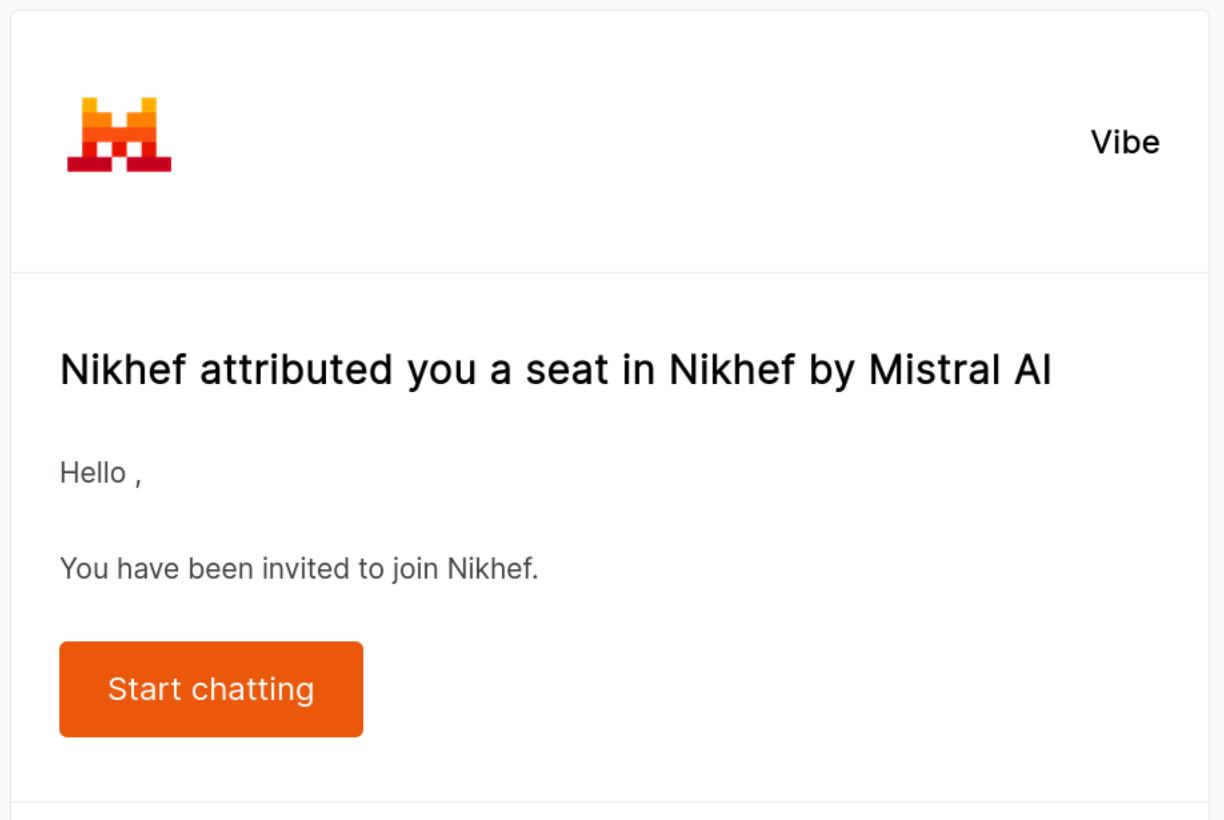 |
| Step 2: Enter your account details as used when your account was registered. This should be your "Nikhef login name@nikhef.nl". If you already have an account associated with this email address, you will be asked to enter your password. You can then continue with Step 5 of this guide. | 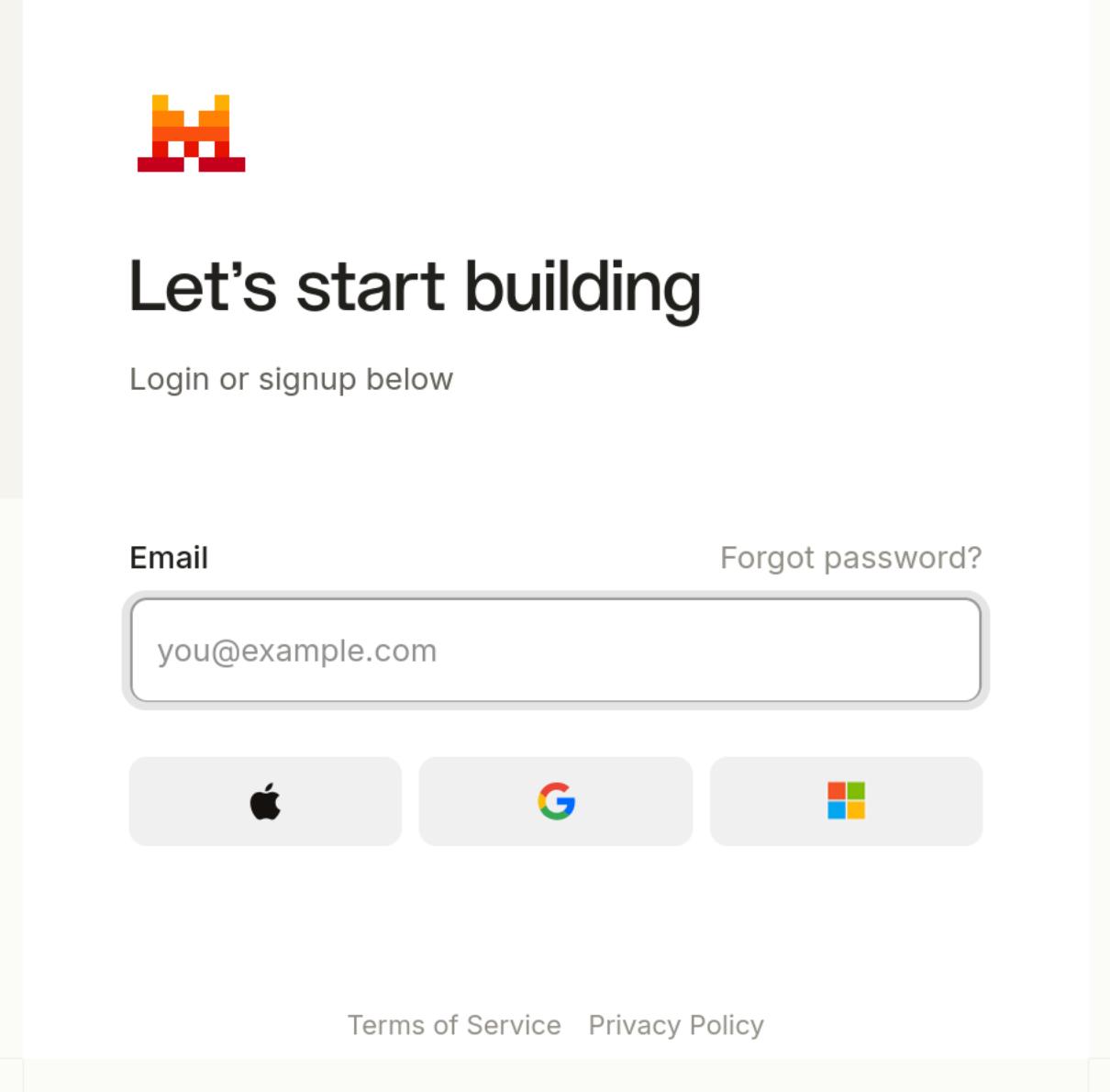 |
| Step 3: If you do not yet have an account, you will be asked to create one by entering the requested information. | 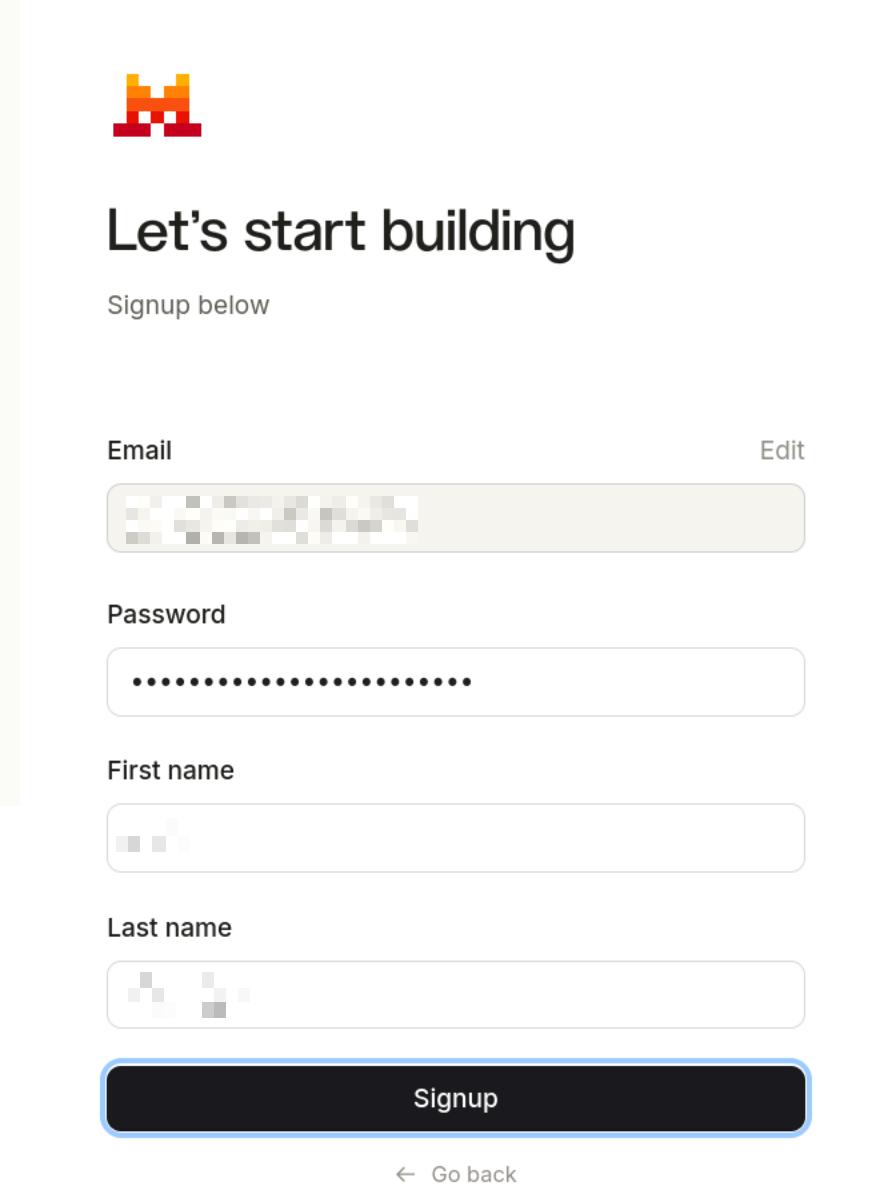 |
| Step 4: An email containing a verification code will be sent to you. Enter this code to continue. | 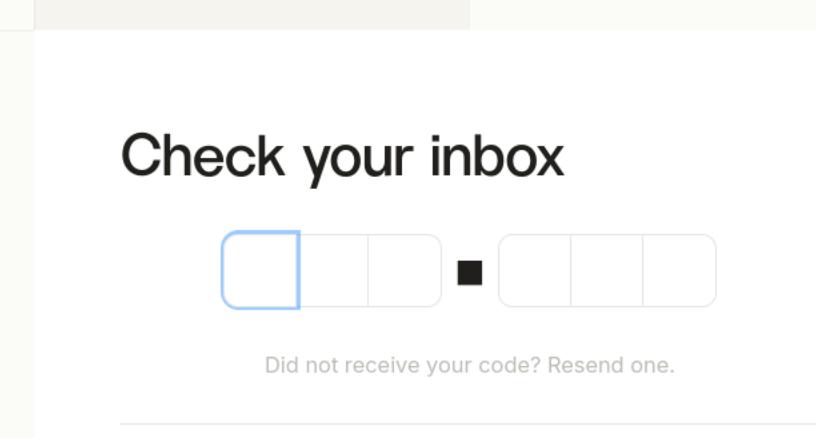 |
| Step 5: You will now be asked to join the Nikhef team. Click the black button labelled 'Join' to do so. | 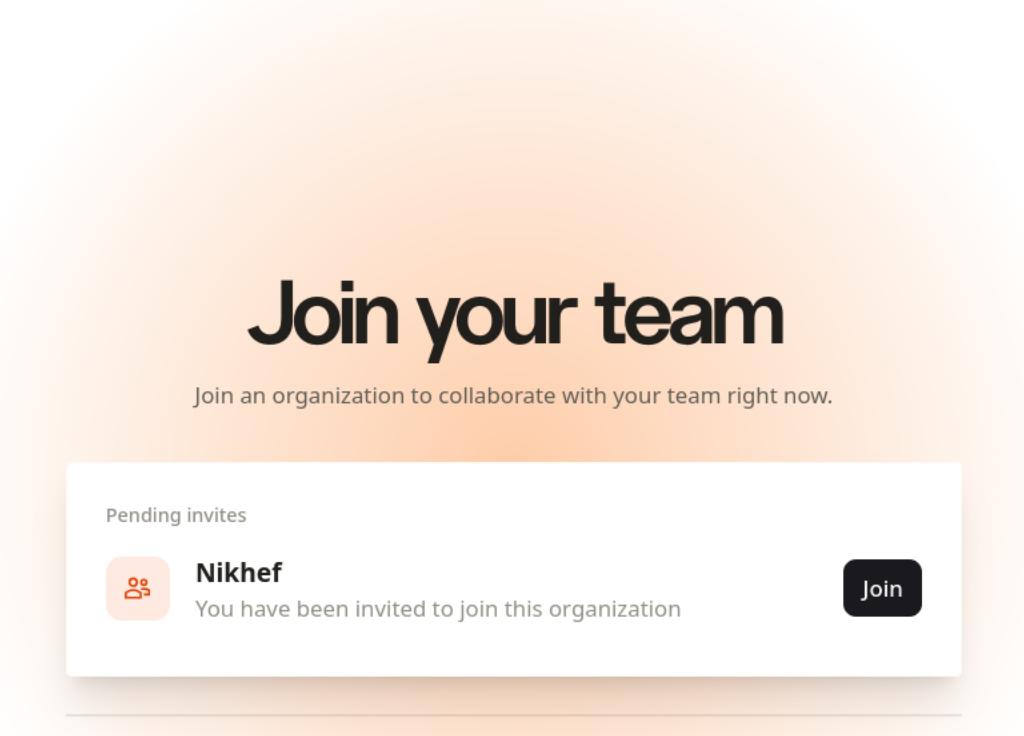 |
| Step 6: You have now successfully registered and can start using your Mistral account. | 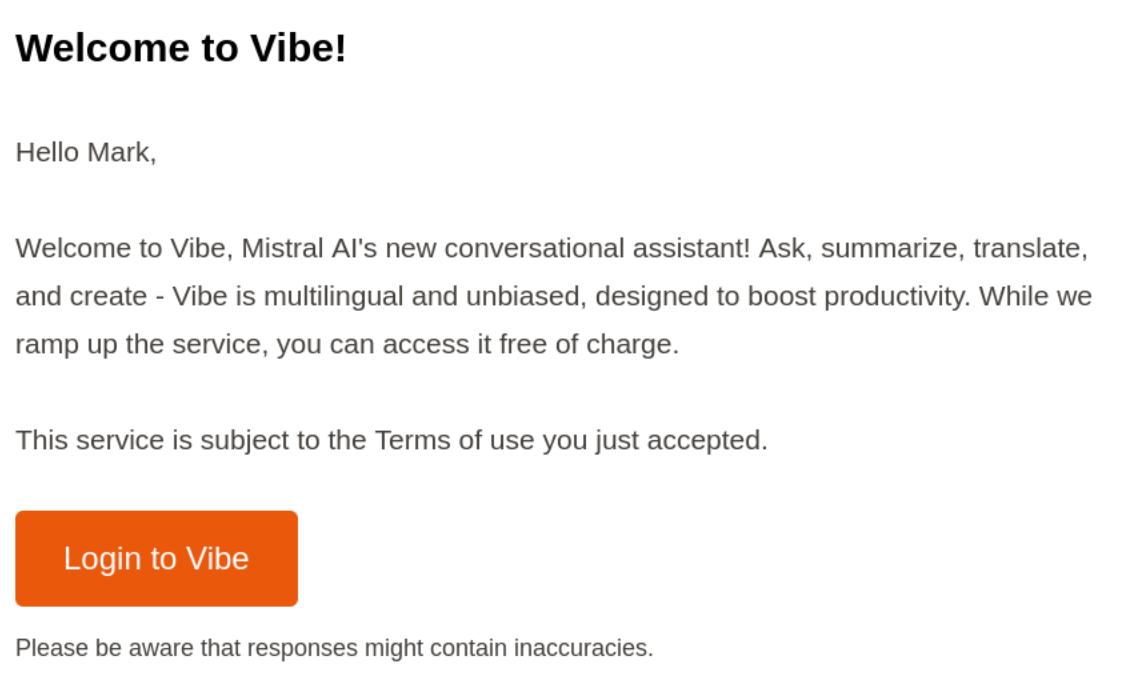 |